
About: System usage shows usage data of engines previously used in running productions as well as related traffic data.
→ Learn more about user roles and permissions.
Access system usage
To access the system usage view:
- In top left corner, next to the Live Video Cloud logo, click on the team name.
- Click on "System Usage".
Introduction
The system usage view shows usage data of engines previously used in running productions. It makes cost causation and usage of configured system components transparent and provides a clear overview of the system usage for selected time intervals. It also acts as a base for accounting to create invoices depending on your contract conditions (reserved and on-demand usage).
While handling sensitive information, access to this view is restricted to users with the role manager. When your organization is maintaining multiple teams, one team will be designated as the parent team, identified by the blue HQ label next to the team name. The manager of the HQ team is able to view all teams’ usage in a consolidated way and can also switch between individual team reports.
The data shown can be adjusted by choosing a specific time interval or team. The start and end day of the interval are referring to 12:00 AM midnight. If you need single logs of actions, you can use the CSV Export Button to download a CSV file with detailed information. Be aware that the data is not live, but will be updated regularly.
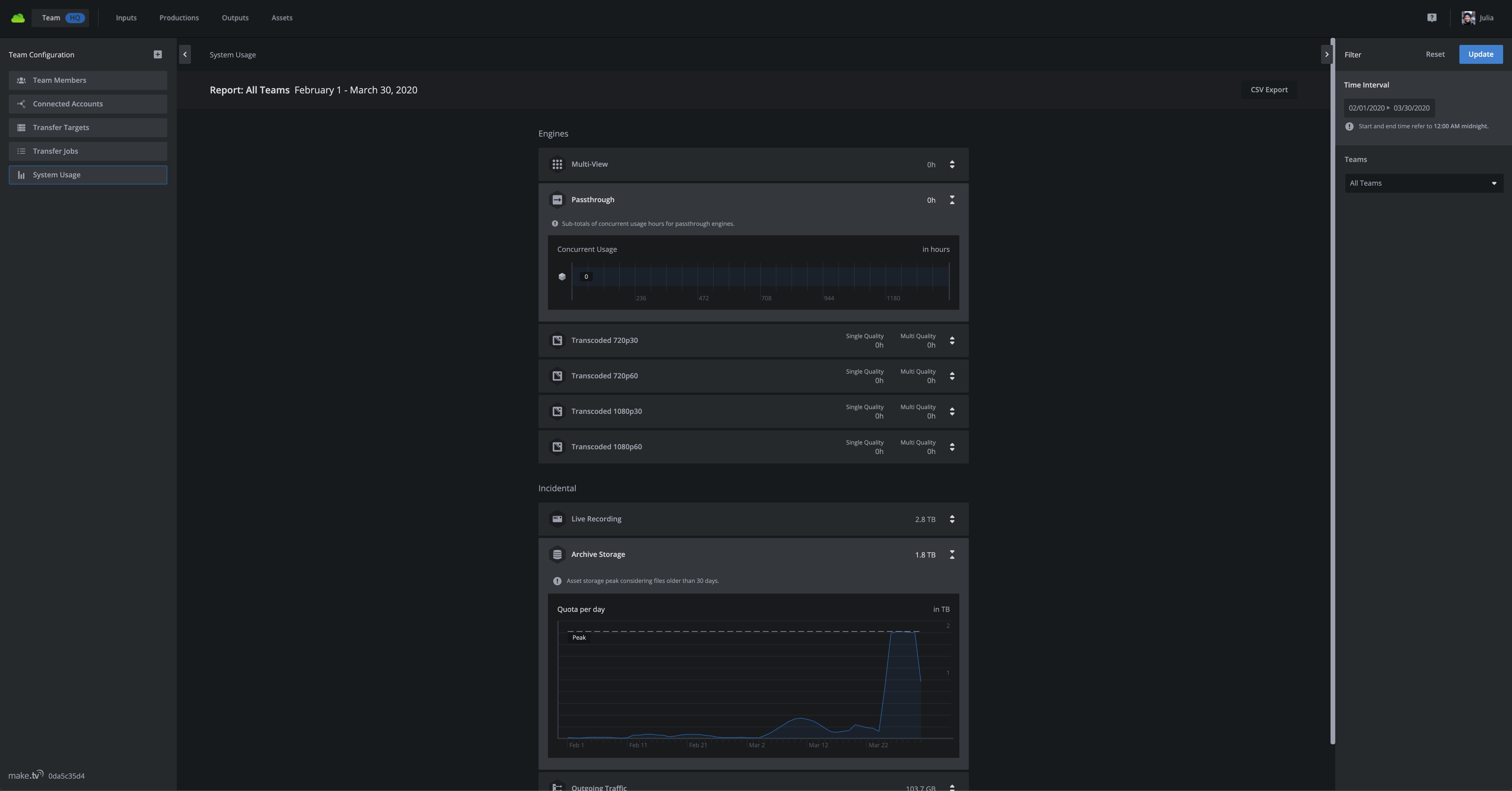
Fig. 1: System usage view
Engines
The concurrent usage of engines is shown in hours. The bars represent single engines used in parallel (Fig. 2). If there is no concurrent usage, all data will be shown in a single bar (Fig.3). In case the engine usage is equal to or higher than 50 hours a month it is recommended to switch to a reserved engine to reduce long-term costs. Ask your account manager to compare your subscription plan with your actual usage.
Multi-view
The multi-view usage is showing engine costs for displaying animated inputs. Depending on the configured amount of animated signals in the production dialog, a certain number (12 animated signals per 1 engine) of engines has to start during production.
Note: These engine costs can be only avoided, by setting the number of animated input signals to 0 in the production dialog before starting it. The multi-view will then preview signals as thumbnails.
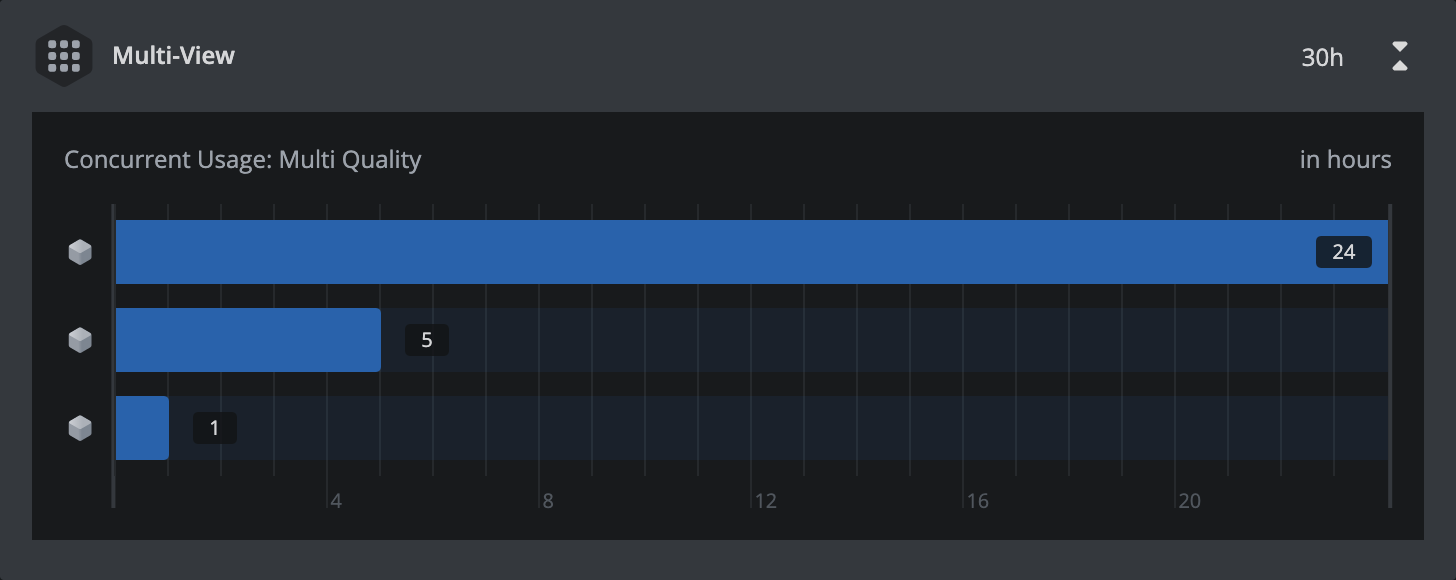
Fig. 2: Multi-View consumption as concurrent usage with multiple data bars.
Output
The usage for outputs is separated into two sections: corresponding output categories and configured qualities. Each transcoded output can have separate sections for single-quality (only one configured) and multi-quality (more than one) usage depending on your settings. The following output configurations lead to the listed engines:
- Passthrough is equal to a Passthrough Output.
- Transcoded 720p30 corresponds to a Transcoded Output with a configured framerate of 30 fps and a quality of 720p.
- Transcoded 720p60 corresponds to a Transcoded Output with a configured framerate of 60 fps and a quality of 720p.
- Transcoded 1080p30 corresponds to a Transcoded Output with a configured framerate of 30 fps and a quality of 1080p.
- Transcoded 1080p60 corresponds to a Transcoded Output with a configured framerate of 60 fps and a quality of 1080p.
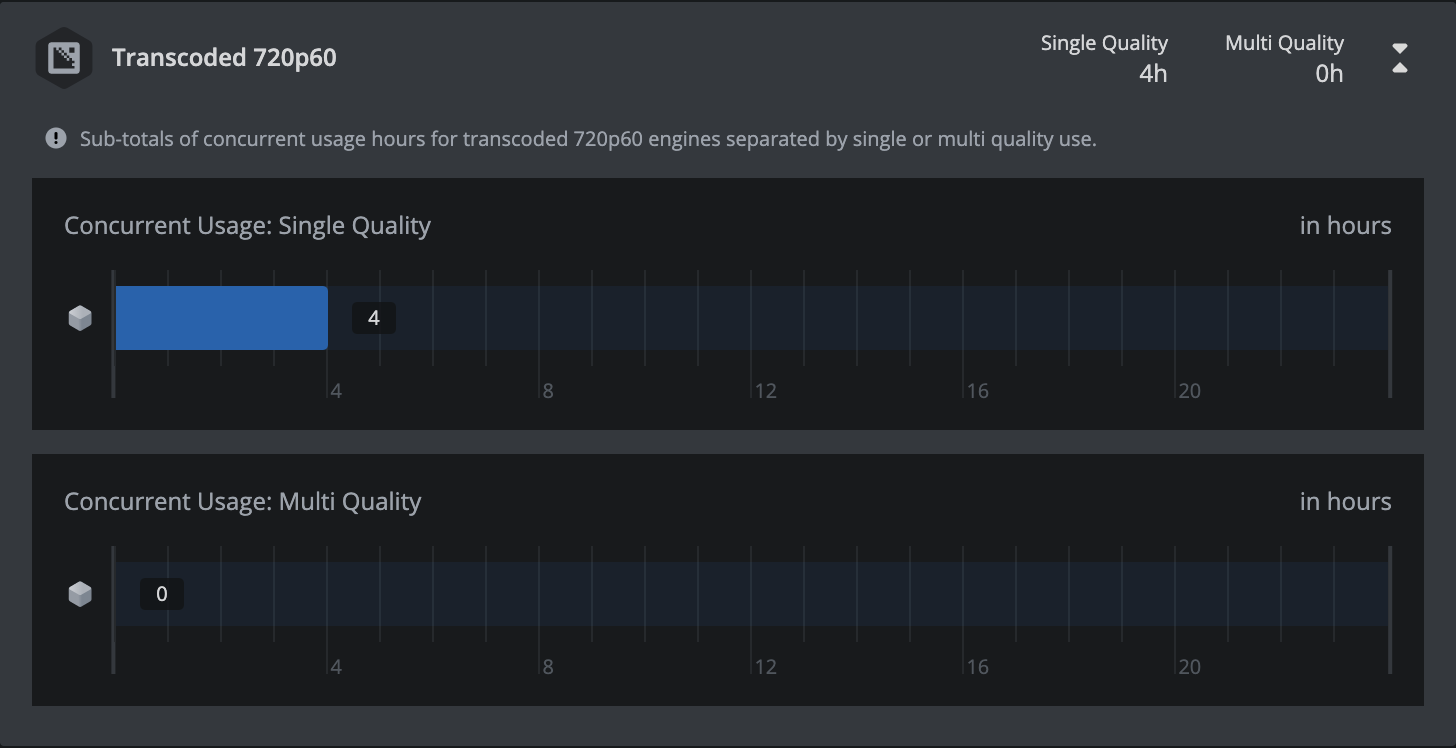
Fig. 3: Transcoded 720p60 consumption as non-concurrent usage with a single data bar.
Incidentals
Incidentals are costs produced by signal processing operations like recording or distributing signals to target destinations.
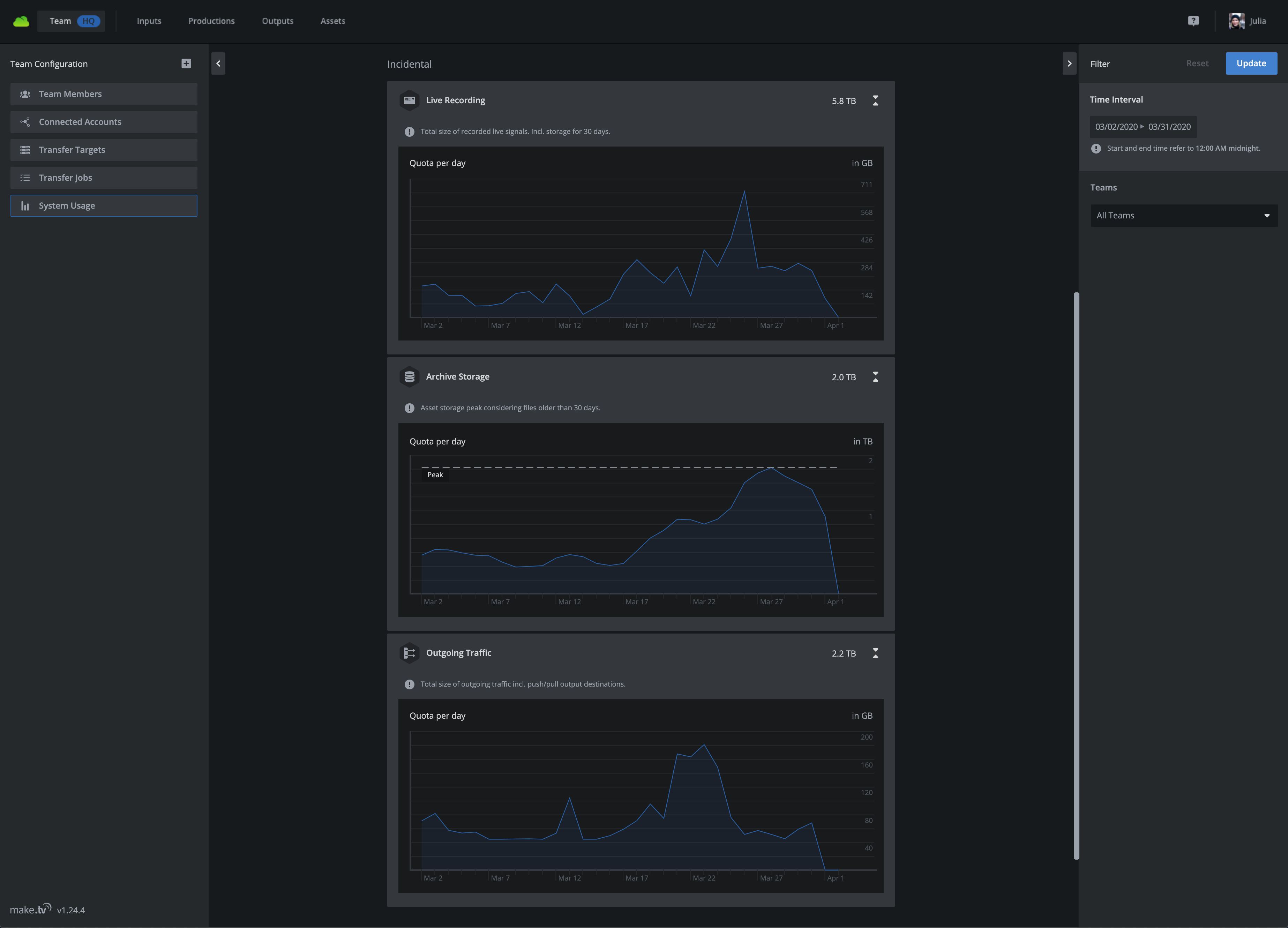
Fig. 4: Incidental usage
Live recording (optional)
Ingested signals are recorded and stored internally in our system. The usage refers to the total size, generated by those recordings. They are available in the asset view for a specific time span, depending on your contract. If you need further information about it, please contact your account manager.
Peak storage (optional)
Daily asset storage peak considering files within the time interval. If you need further information about it, please contact your account manager.
Outgoing traffic
The usage of signal distribution via outputs generates outgoing traffic, which is summed up and presented as a total size.