
About: Productions represent the configuration of your video router setup by connecting inputs, outputs and adjusting multiview settings. Within productions, you describe which inputs and outputs should be available.
Not sure how to start?
Create or edit a new production
To create a new production:
- Go to productions.
- Click on the "Create" button in the left sidebar in the upper right corner.
To edit an existing production:
- Go to productions.
- Place your cursor over the element you want to edit and click the appearing "Edit" button.
- Or left-click on the element you want to edit and click on the "Edit" button in the inspector in the upper right corner.
Hint: Productions are displayed in various places. You can always place your cursor over an production and click the appearing "Edit" button.
The configuration of a production consists of three sections:
1. General
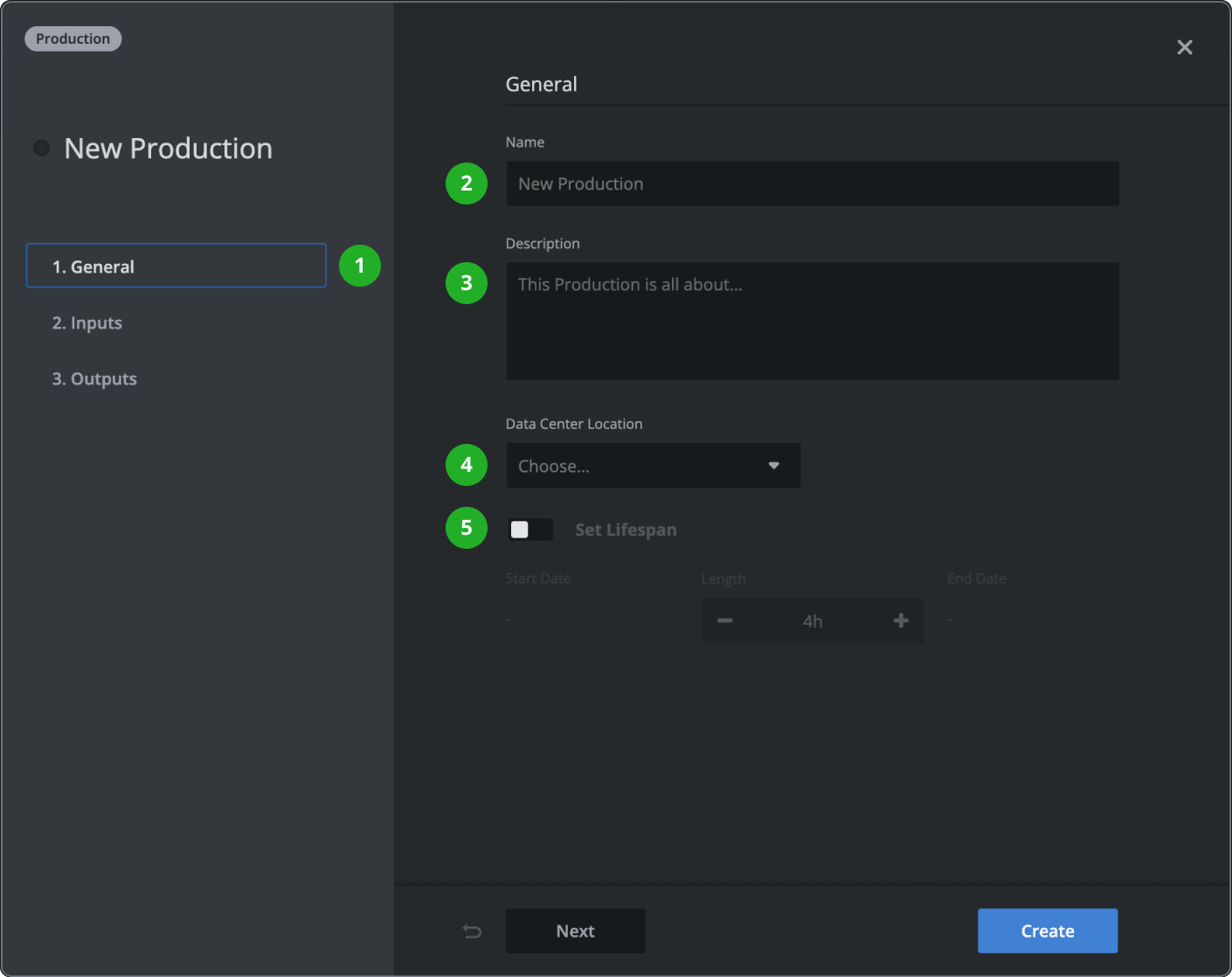
- Click on "1. General", if not already selected.
- Type in a name that will be used across your Live Video Cloud team.
- Enter a description to help other operators understand the intended use.
- Select a data center location. Usually, you want to pick a location close to your operator or on-site infrastructure within which you plan to process routed content coming from a destination or resource location of an output.
- (Optional) Enable and set a lifespan after which the production and all assigned inputs and outputs will be turned off automatically.
Hint: Changing the data center location and lifespan is not possible while a production is running.
2. Inputs
- Click on "2. Inputs".
- (Optional) Change the "Multi-View (Animated Signal)" value to decide how many ingested signals you want to preview as an animated signal versus a regularly updated thumbnail preview.
- Assign inputs or team members by typing into the search field and selecting the inputs you want to make available in this production.
Hint: Inputs can be used in multiple productions simultaneously. All ingested signals will be recorded once. Routings can only be created between inputs and outputs that share a running production.
3. Outputs
- Click on "3. Outputs".
- Assign outputs by typing into the search field and selecting the outputs you want to make available in this production.
- (Optional) Sort your list of outputs via drag and drop based on your needs. The order of the outputs is used in the multiview.
→ Learn how to control productions.
Hint: Outputs can only be used in one running production simultaneously.
Click the “Create” or ”Save Changes” button in the bottom right corner.
How to continue?