
About: Productions allow for visual curation and a preview of ingested live signals, monitor connectivity metrics of incoming and outgoing signals, and route content in a fast and flexible manner.
Not sure how to start?
→ Learn how to create productions.
→ Learn to select productions.
Overview
The production view provides previews of ingested signals and enables operators to route signals to outputs for optional processing and distribution.
- Input signals: At top half, Live Video Cloud displays all signals that are currently being ingested into the given production.
- Output signals: At the bottom, all assigned outputs are displayed.
Input signals
Inputs signals are thumbnails or animated previews of live signals that are ingested to assigned inputs of the production. Whether or not your browser shows thumbnails or animated previews depends on the production configuration and your display options.
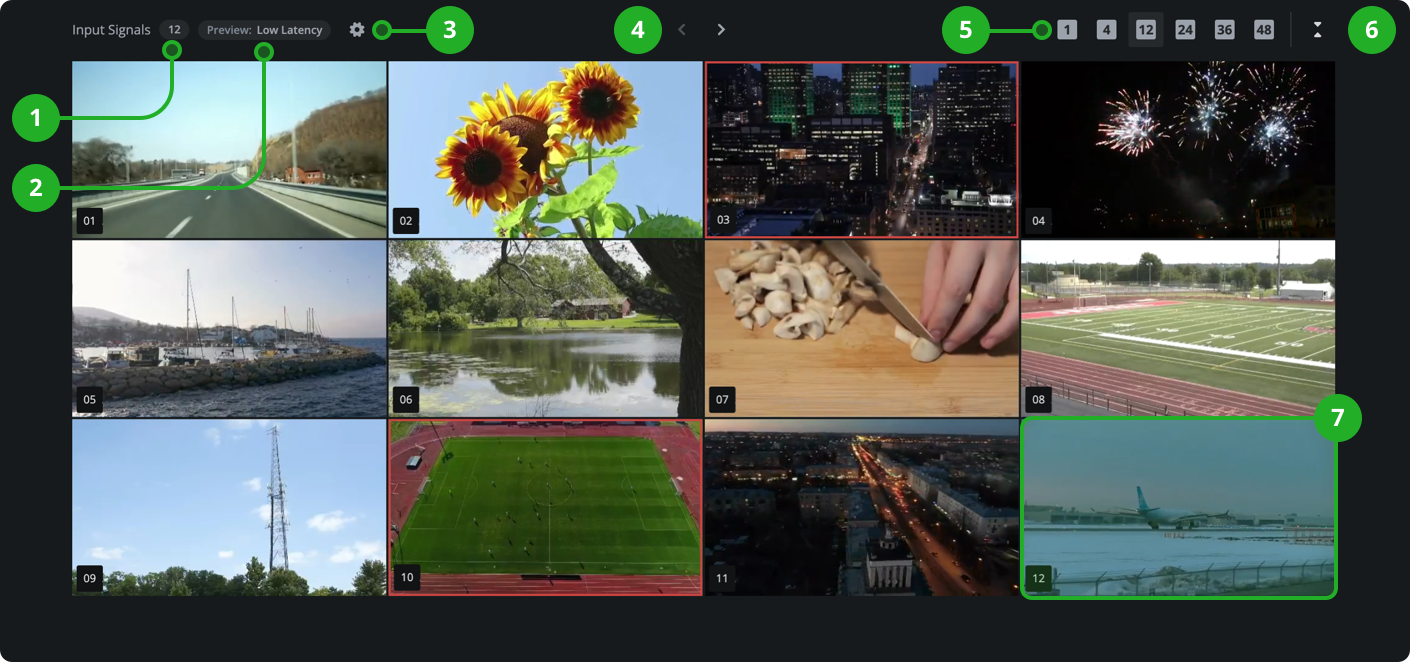
- Number of input signals: Shows the number of signals currently being available to this production based on assigned inputs currently receiving a signal.
- Preview mode: Shows what preview mode is currently active to display signals.
- Options: Provides options to change the multiview display.
→ Learn more about multiview display options. - Paging: Allows navigating through all available live signals. The number of pages depends on the amount of signals and zoom level.
- Multiview of input signals: Allows changing the number of signal previews being displayed from 1 to 48.
- Expandable: Collapse or uncollapse multiview of input signals.
- Signal previews: Displays a preview for each ingested signal or an empty tile as a placeholder.
Place your mouse on a signal or select a signal to get more information and options.
- Route: Allows routing a signal to an output.
- Preview: A visual preview of the ingest signal, either thumbnail or animated.
- Number of the input signal: The number of the signal relative to the position in the multi-view.
- Status: Displays the current status of the input.
- Label: Input or username, depending on the ingest method. (Optional: For inputs with failover enabled.) Displays which signal is currently active.
- Routed to: If the signal is routed to an output, the number of the output is displayed.
- Fullscreen: Button in the top right corner, opens the fullscreen view of the signal.
Selecting an input signal further provides real-time connectivity metrics on the signal in the inspector.
→ Learn to inspect input and live signals.
Output signals
Assigned outputs are displayed at the bottom of the multiview.
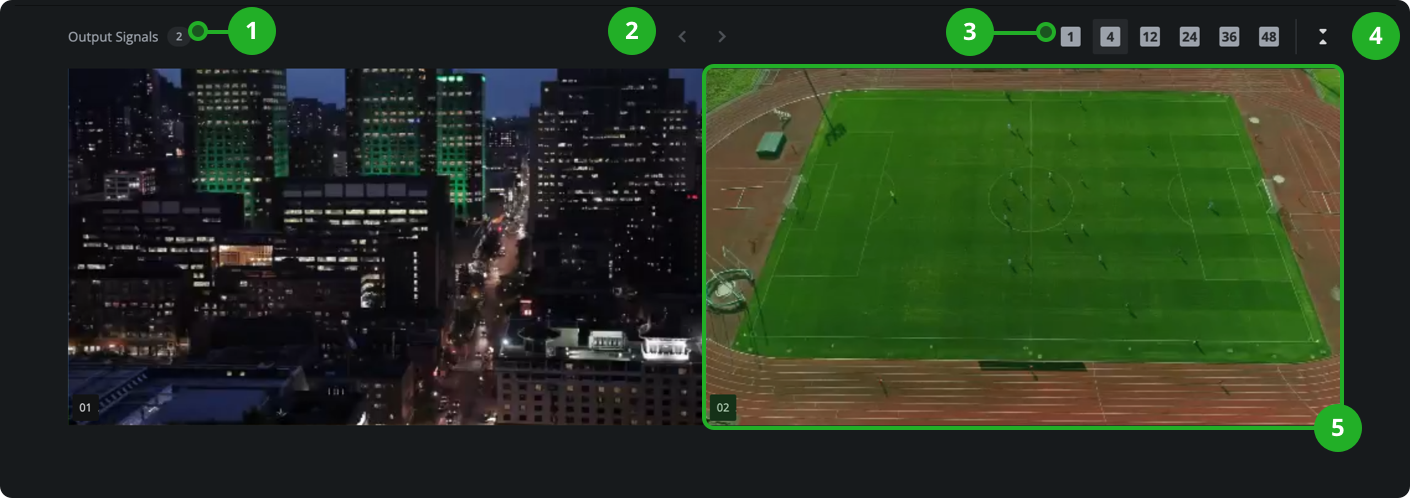
- Number of assigned outputs: Shows the number of assigned outputs.
- Paging: Allows navigating through all assigned outputs.
- Multi-view of output signals: Allows changing the number of signal previews being displayed from 1 to 48.
- Expandable: Collapse or uncollapse multi-view of input signals.
- Output previews: Each assigned output is displayed with a visual preview or empty placeholder.
Place your mouse on an output or select an output to get more information and options.
- Route: Allows routing a signal to the output.
- Preview: A visual preview of the routed signal, either thumbnail or animated.
- Number of the output: The number of the output as based on the sorting in the production configuration.
- Label: Name of the output.
- Routed signal: If a signal is routed to the output, the number of the input is displayed.
- Fullscreen: Button in the top right corner, opens the fullscreen view of the signal.
Selecting an output further provides real-time information on resource locations and destinations.
How to continue?
→ Learn how to route live signals in productions.
→ Learn how to inspect productions.
→ Learn how to monitor outputs.