
About: Import media files from external servers using HTTP download.
Hint: LTN Schedule supports any H.264 encoded footage using a MP4 or TS container. The media importer supports providing an HLS m3u8 location. Importing media from servers does not set a file size limit. The import speed is limited to 100 Mbit/s while the rundown is running and unlimited when stopped. Importing XML metadata files is not supported.
→ Learn to upload media via SFTP including XML files.
→ Learn to upload media via SFTP including XML files.
Not sure how to start?
→ Learn to create custom fields.
Import media from servers
To import media from external servers:
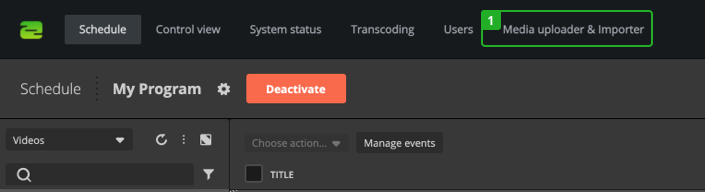
- Go to "Media uploader & Importer" in the top navigation.
In the "Media uploader & Importer" area, find the "Media importer" section at the bottom half.
Optionally, add custom fields to be added to your imported files as metadata. After import you can filter the library based on the added custom fields or check their usage within the "as-run" reports:

- Search and select a custom field.
- Display of the selected field.
- Enter a value.
- Remove a custom field.
Continue with entering the to be imported media URL:
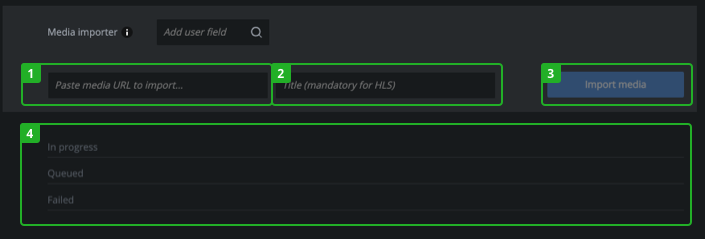
- Enter the URL (HTTP URL, e.g., https://mydownloadhost.com/testfiles.mp4, to the .mp4 or .ts file) to import.
- Enter a title. Adding a title is mandatory when importing HLS (m3u8) playlists.
- Press "Import media" to start the import process.
- In progress, Queued, Failed: See the current status of your uploads.
On the right side, see success and error messages.
Hint: You can work in other areas of LTN Schedule while uploading media files in the background. Started imports will continue if you close your tab or browser.
Once your import has been completed, the imported files are available in the library.
How to continue?