
About: Live signals being ingested into Live Video Cloud are automatically recorded and become available as assets during and after ingest. The assets view is your archive to explore content that has been ingested in the past and allows your to preview and download or transfer whole assets or selected segments.
Go to assets
To open the assets view:

- In the top navigation, click on "Assets".
The assets view consists of three main areas:
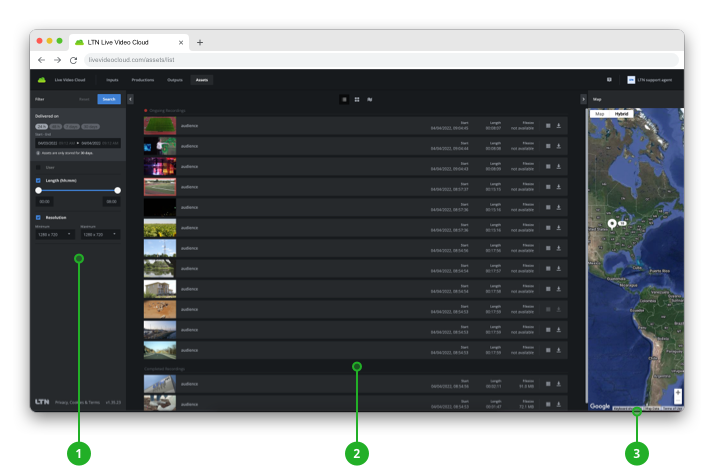
- Asset filter: Provides filter options to narrow down which elements should be displayed in the asset exploration section.
→ Learn how to filter assets. - Asset exploration: Provides a list, tile, and map view mode emphasizing different information to facilitate different search methods.
→ Learn how to open an asset. - Inspector: Displays a map with geo-locations of the listed assets. If an asset is selected it will provide a preview and information about the asset.
→ Learn how to inspect assets.
Explore assets
Assets can be displayed in list, tile, and map mode. Each mode emphasizes different information.
In any view, double-click an asset to open.
List
In list mode, assets are displayed with many of the most relevant information being immediately accessible:

- Thumbnail: Shows the latest generated static preview of the signal. Thumbnails are updated periodically for ongoing recordings. If a related live signal of an ongoing recording is routed to the signal, the thumbnail shows a red tally light frame.
- Type and name: Displays the input type and custom input name.
- Start: Shows start date and start time of the ingest.
- Length: Shows the duration of the asset. For ongoing recordings, the duration is growing.
- Filesize: Shows the size of the recorded asset. For ongoing recordings, the file size is growing.
- Transfer: Opens the list of configured transfer targets. Selecting a transfer target starts transferring the asset to the selected target.
- Download: Downloads the asset to your local machine.
Tile
In tile mode, assets are displayed with an emphasis on the visual preview and related input:
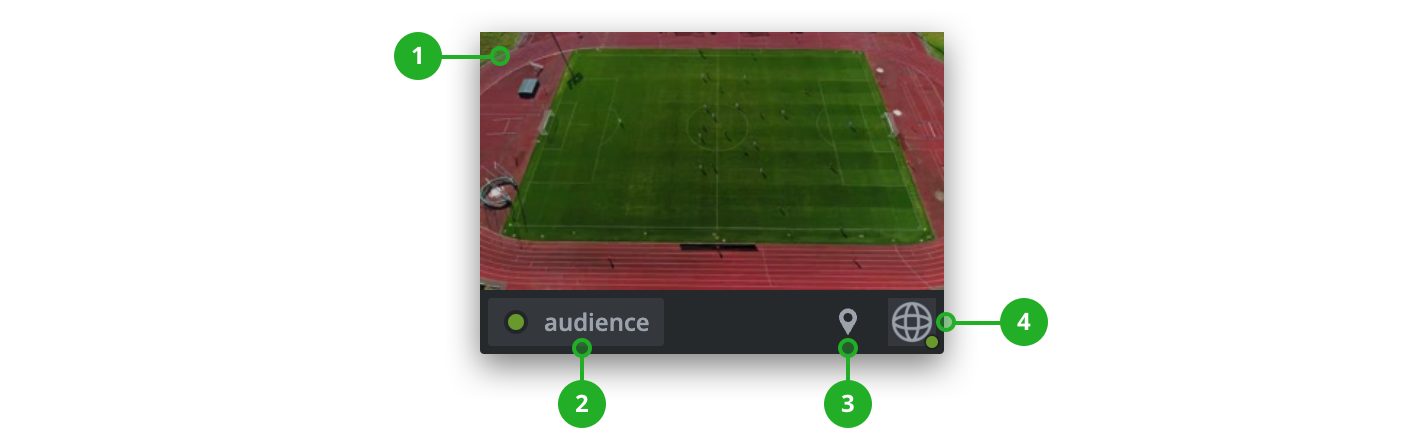
- Thumbnail: Shows the latest generated static preview of the signal. Thumbnails are updated periodically for ongoing recordings. If a related live signal of an ongoing recording is routed to an output, the thumbnail shows a red tally light frame.
- Input: Shows the related input with status and name.
- Location: If the signal has location information a location icon is displayed (coordinates appear when mouse cursor is placed on top)
- User: If the signal is ingested via a user, the avatar will be displayed (username appears when mouse cursor is placed on top)
Map
If assets have geo-location information based on their configured input or web contribution source, they are displayed on the map as location pins.
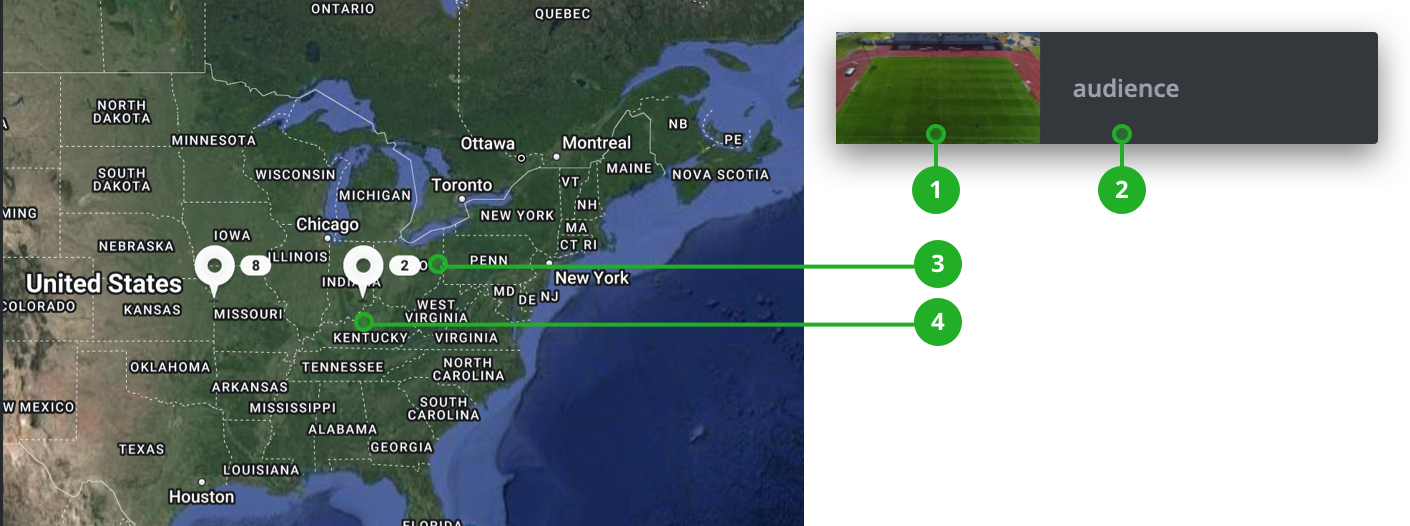
- Thumbnail: Shows the latest generated static preview of the signal. Thumbnails are updated periodically for ongoing recordings. If a related live signal of an ongoing recording is routed to an output, the thumbnail shows a red tally light frame.
- Type and name: Displays the input type and custom input name.
- Number: If multiple signals are coming from the same location, those will be summed up and the amount of signals is displayed.
- Pin: Marks the geo-location a signal is ingested from.
How to continue?
→ Learn how to inspect assets.
→ Learn to transfer an asset or segment.