
About: Start publishing activates all enabled destinations and distributes your scheduled program to the respective destinations. Stop publishing stops all distribution immediately. Before you can start publishing, your playlist needs to be started.
Not sure how to start?
→ Learn to create destinations.
→ Learn to start/stop your playlist.
(Valid until version 9.3, see below for newer version)
Start publishing
Before you can start publishing, make sure your playlist is running.
→ Learn to start/stop your playlist.
To start publishing:
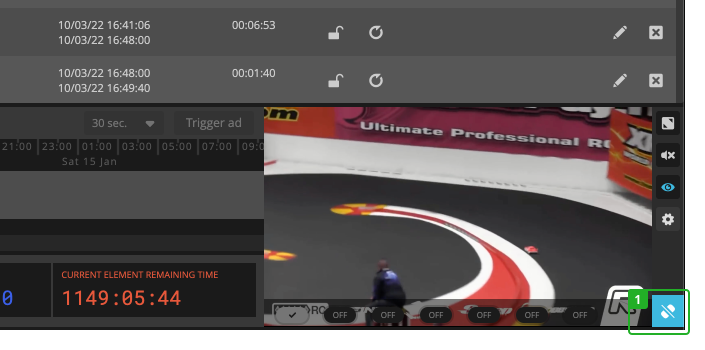
- Click "Start publishing" in the bottom right corner next to your output preview.
All enabled destinations will start broadcasting.
Stop publishing
To stop publishing:
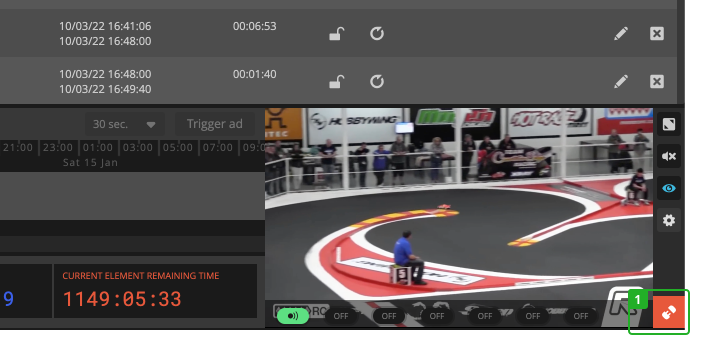
- Click "Stop publishing" in the bottom right corner next to your output preview.
- Confirm the action.
All destinations will immediately stop broadcasting.
(Valid from version 9.3)
From version 9.3 we changed the publish/unpublish buttons now displaying the current state of the system instead of showing the action the user performs when clicking the button.
Start publishing
Before you can start publishing, make sure your playlist is running.
→ Learn to start/stop your playlist.
To start publishing the system needs to be in the state of "not publishing". You can identify this state by the icon showing the plugged-out symbol.
To start publishing:
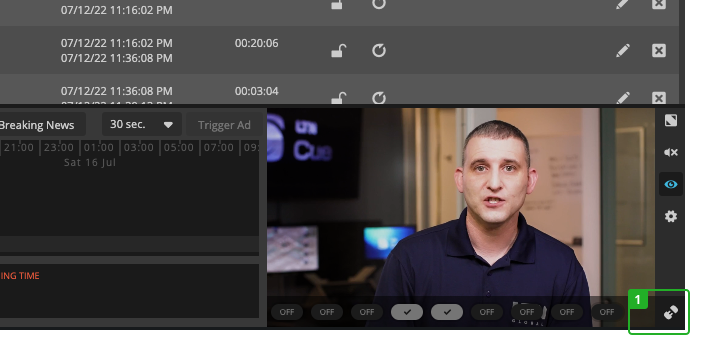
- Click "Start publishing" in the bottom right corner next to your output preview.
All enabled destinations will start broadcasting.
Stop publishing
To stop publishing the system needs to be in the state of "publishing". You can identify this state by the icon showing the green plugged-in symbol and the active targets being green.
To stop publishing:
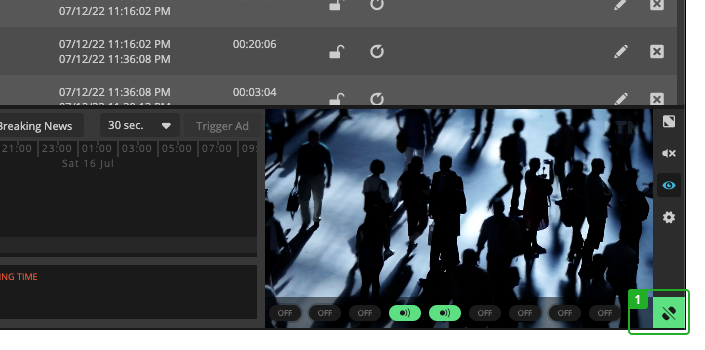
- Click "Stop publishing" in the bottom right corner next to your output preview.
- Confirm the action.
All destinations will immediately stop broadcasting.