
About: Publish on YouTube via an OAuth-connected destination to automatically update metadata or trigger ad breaks on the destination platform.
Not sure how to start?
→ Learn to create destinations.
1. Create a YouTube destination
To create a YouTube destination, modify your destinations, add a new destination and follow the instructions below:
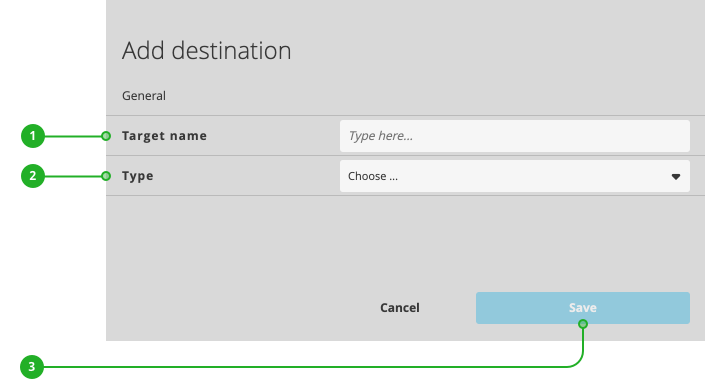
- Enter a name.
- As type, select "YouTube".
- Click "Save".
Continue your configuration in the new dialog appearing:
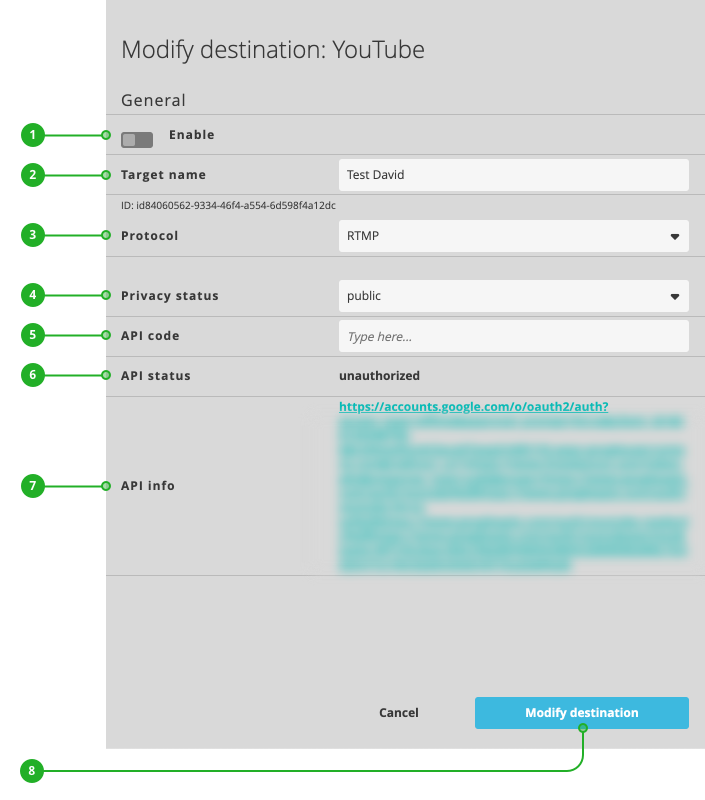
- Enable/Disable: Activates or deactivates the destination for publishing.
- Target name: As described above, the name of your destination.
- Protocol: Select either RTMP or HLS as streaming protocol.
- Privacy status: Select public, unlisted, or private.
- API code: Displays the authentication code once authentication is completed. You can also enter a valid API code from YouTube.
- API status: Displays the current authentication status.
- API info: Provides a link to initiate the authentication or provides detailed information on the current status of the authentication.
Continue with authenticating your destination.
2. Authenticate your destination
To authenticate your YouTube destination:
- Click the link next to the "API info" (7).
- Follow the instructions given by YouTube's authentication process. When asked, allow "Playout Server" to get access to your Google account.
- Receive a success message: "Your token has been successfully transmitted."
- You can close the window displaying the success message.
Continue with completing your configuration.
Note: If your company account allows ad-triggering and you want to let Schedule trigger ads, during the authentication process you will have to select a persons account, that has "ContentOwner" rights to the channel, you want to use. Selecting the company account might result in the message:
Current account does not authorize ad-triggering. Please use an account, associated with the correct Content Owner.
3. Complete your configuration
Select a broadcast to connect your destination to a scheduled live stream on YouTube or use the go live now capability of YouTube.
To select or create a broadcast:
- Edit the YouTube destination.
In the dialog:
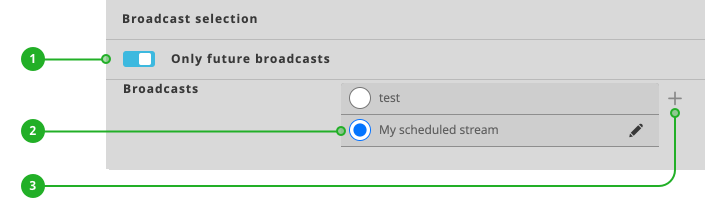
- Select whether to list only future broadcasts or show all.
- Select an existing scheduled live stream created in "YouTube Studio".
- Or create a new broadcast.
To create a new broadcast:
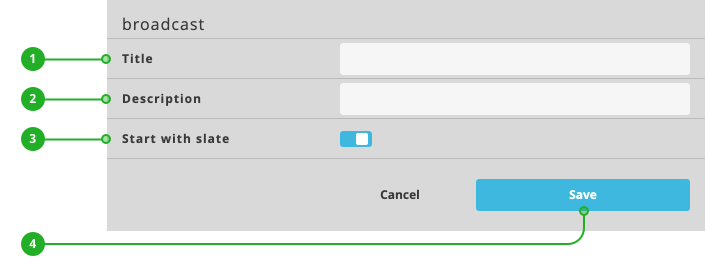
- Enter a title.
- Enter a description.
- Enable/disable start with a slate.
- Click "Save".
Set a global category to help YouTube users find your content.
To set a global category:

- Enable "Set global category".
- Search for a category and select it.
Press "Modify destination" to save your changes. Your destination is now ready to use.
How to continue?
→ Learn to activate/deactivate your rundown.
→ Learn to turn on/off destinations.