
About: Streamtag inputs allow ingesting live signals from smart phones with WebRTC-capable desktop and mobile browsers.
Not sure how to start?
→ Learn where to create a new input or edit an existing input.
Configure a Streamtag and WebRTC input
Section 1: General
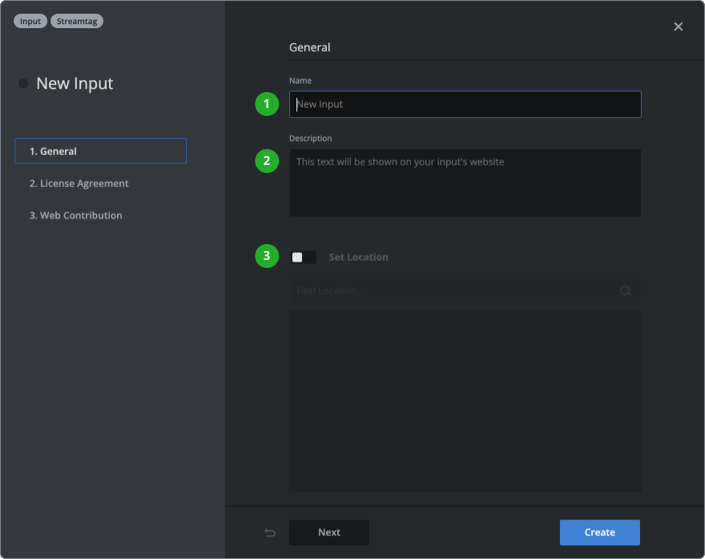
- Type in a name that will be used as a unique identifier across your Live Video Cloud team. It also acts as a title for the WebRTC landing page, if enabled.
Running into error messages? → How to name your streamtag. - (Optional) Add a task/event description, to give further information, e.g., what kind of footage you are looking for or when a specific event takes place.
- (Optional) Enable "Set Location" and enter a location to your input.
Section 2: License agreement
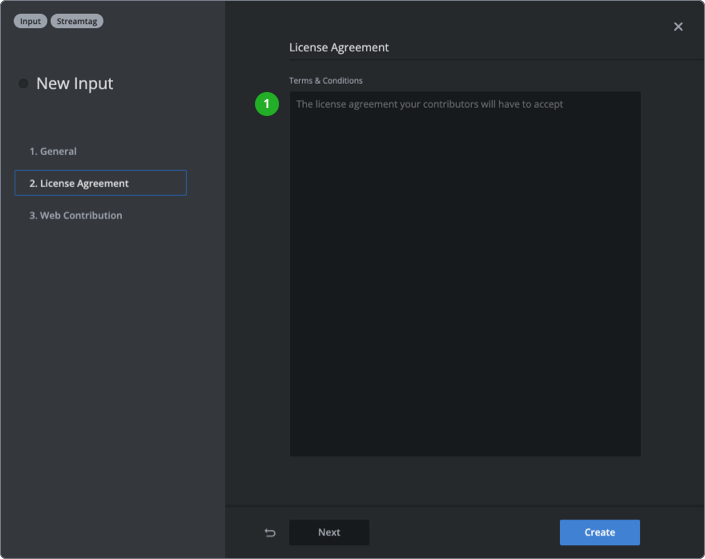
- Write or copy & paste the terms and conditions a contributor needs to accept before ingesting a live stream.
Section 3: Web contribution
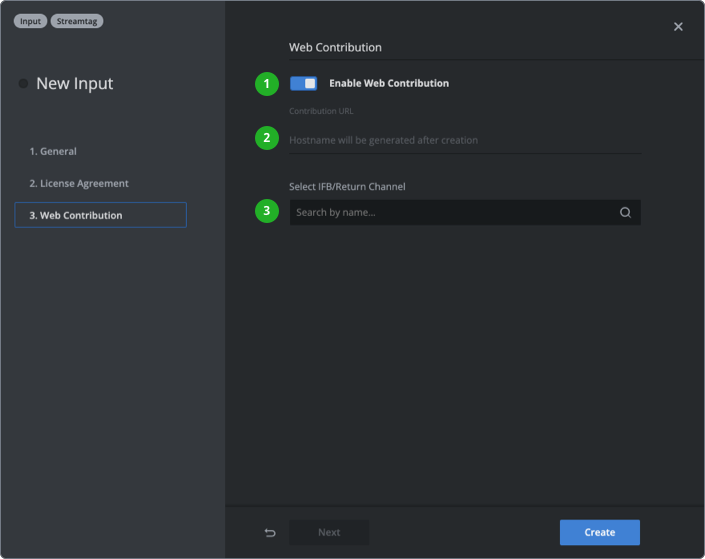
- If you want to enable browser-based live contribution, first activate the switch at the top.
- The URL will be available in this dialog and in the inspector of the input after its creation. You can share this URL with your audience or team to provide a browser-based contribution page.
- Optionally you can select a configured output as a return channel to connected WebRTC clients.
Press “Create” or ”Save Changes” in the bottom right corner.
Share contribution URL
If you have web contribution enabled, use the generated URL to share it with your remote contributors.
→ Learn where to find generated credentials of inputs.
Format of a URL:
https://streamtag.tv/{team_identifier}/{streamtag_identifier}
How to continue?
→ Learn how to set up external devices.