Switch to calendar view
Additional to the list view, the rundown can be displayed in the calendar view. To switch the view click the calendar icon on top of the rundown list.
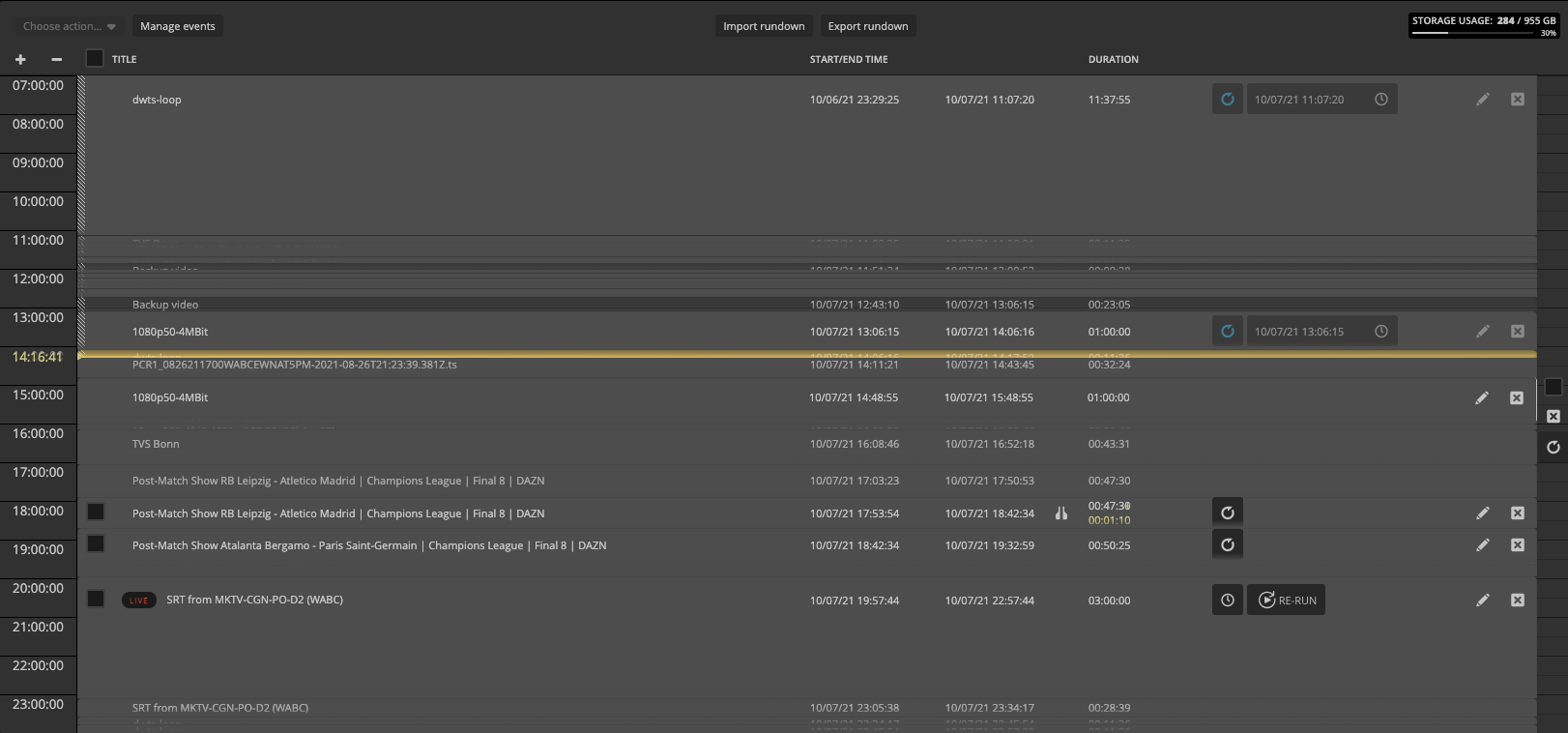
In the calendar view, the rundown items are displayed over the timespan of 24 hours for one day. The same actions are available as in the list view.
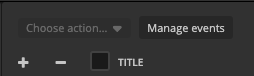
Zoom levels
With the +/- buttons you can zoom in and out to see the whole day or to see more details on an hourly, 30min, 15min, or minute level.
Change displayed day
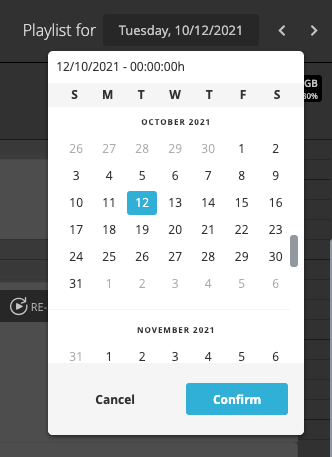
To switch the day you can use the left and right arrows beside the date in the top-right corner or open the date picker and select a day.
Use assets in the calendar view
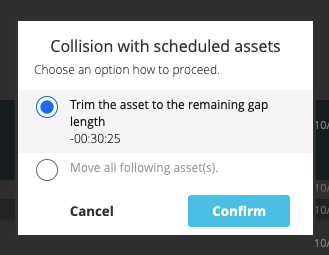
To add assets into the calendar view, you can drag & drop assets from the library directly in. You can target an existing GAP between 2 already planned elements, or you can move the item(s) onto a free spot in the calendar. If the change would create a conflict (element does not fit into the gap) the system will asks what should happen with the affected items.
If you want to drop an item between two existing items without a GAP you need to switch to the list view to do this.
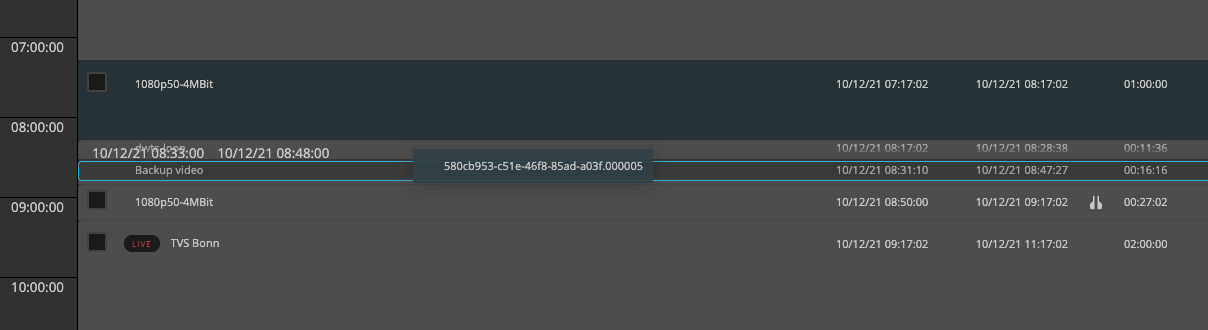
When moving an item into a GAP the system will ask if the item should be trimmed or the following items should be moved.