
About: Custom fields can be added to media assets. Asset usage with specific custom fields can be analyzed in the "as-run report.xml".
Not sure how to start?
→ Learn to edit an asset in the library.
Create custom fields
To create custom fields:
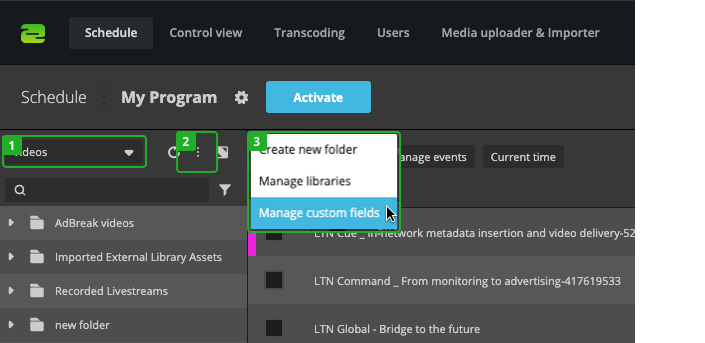
- Select "Videos" in the library dropdown.
- Click on "More" in the library.
- Select "Manage custom fields".
In the "Manage custom fields" dialog:
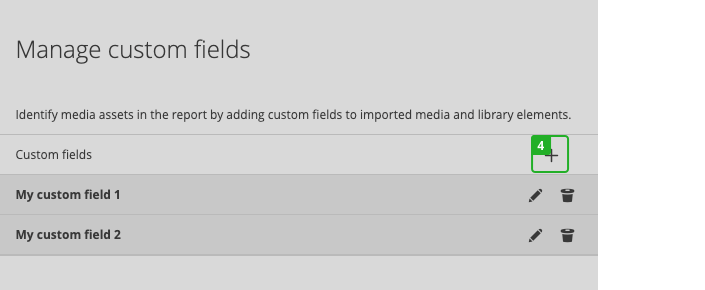
- Click on "Add" in the top right corner of the dialog.
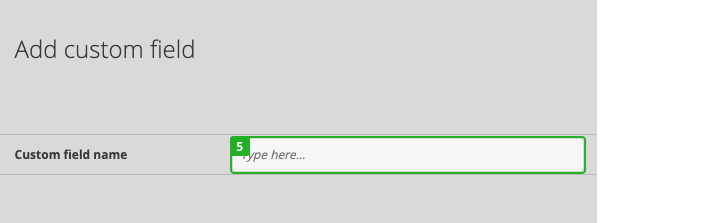
- Give the custom field a name and press save.
Clicking "Edit" (pen) allows you to rename existing custom fields. You can also "Delete" (bin) custom fields.
Assigning custom fields to library assets
To assign a custom field to a library asset:
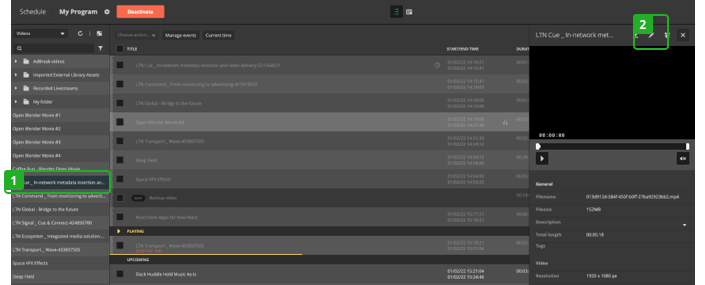
- Select an asset in the library.
- Click "Edit" at top right in the inspector.
- Click in the "Add custom field" search field and select one from the list.
- Enter a value to the custom field.
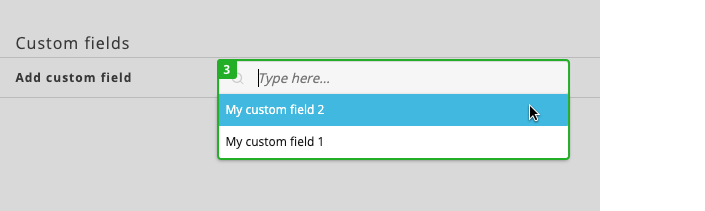
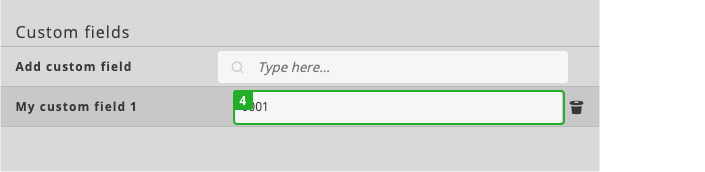
After adding a new custom field and its value press "Save Changes" to save it.
Assigning custom fields to imported & uploaded media
To assign custom fields while importing or uploading media:
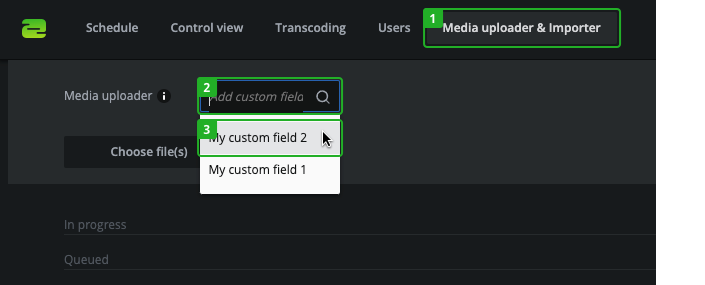
- Go to "Media uploader & Importer" in the navigation.
- Before uploading/importing your media, click into the "Add custom field" search field.
- Select a custom field from the list.
- Enter a value to the custom field.
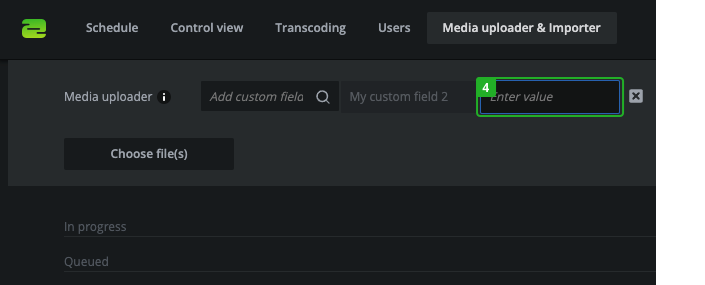
Imported/uploaded media will now have the selected custom fields added to them.
To remove a custom field before importing/uploading click "Remove" (x) next to the value field.
Additional Notes
Custom fields will appear in the report CSVs.
How to continue?
→ Learn how to import and upload media.