
About: Edit library assets to change metadata information, configure custom graphical overlays, and define custom fields for usage reports.
Not sure how to start?
→ Learn to find library assets by searching and filtering.
Edit an asset in the library
To edit a library asset:
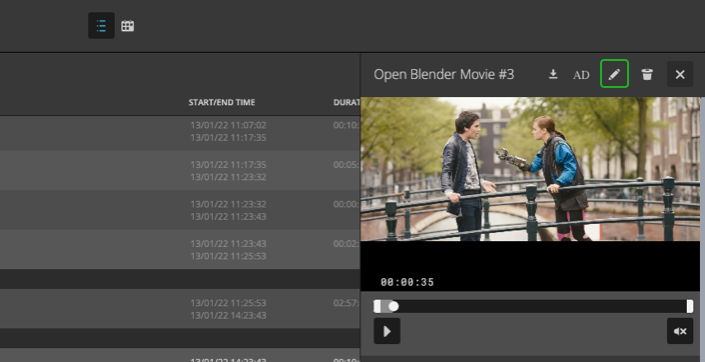
- Select an asset in the library on the left.
- Press "Edit" in the top right of the inspector.
In the appearing dialog you can:
- Title: Edit the title.
- (Optional) Description: Edit the description.
- (Optional) Tags: Add tags to the asset to support filtering.
→ Learn to search and filter library assets. - (Optional) Color tags: Add color tags to assets to quickly identify them or to highlight specific asset types.
→ Learn about the use of color tags in the playlist. - (Optional) EPG Settings: Edit the EPG metadata.
→ Learn about EPG metadata for FAST destinations. - (Optional) Video settings: Trim the video clip.
- (Optional) Events: Add ad break events by selecting a preconfigured event from the list.
→ Learn to manage events. - (Optional) Graphical overlay: Add a custom graphical overlay to the asset by uploading a PNG file.
→ Learn about graphical overlays. - (Optional) Custom fields: Add custom fields to get insights on asset usage in reports.
→ Learn about custom fields.
→ Learn about reports.
How to continue?