
About: Folders help you to organize your assets in the library.
Hint: You can quickly rename a folder by holding ⌘ CMD (Mac) or ALT (Windows) and clicking on a folder. Confirm your change by pressing ENTER.
Not sure how to start?
→ Learn how to add media assets to your library.
Create and use folders
In the library, you can organize your video assets in folders and subfolders.
To create a new library folder:
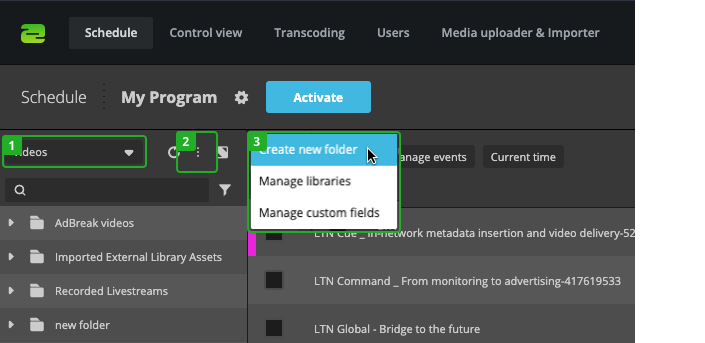
- Select "Videos" in the library dropdown.
- Click on "More" in the library.
- Select "Create new folder".
You can rename and nest folders. To move a file or folder into another folder, drag and drop it into the desired location.
Expand/collapse the library
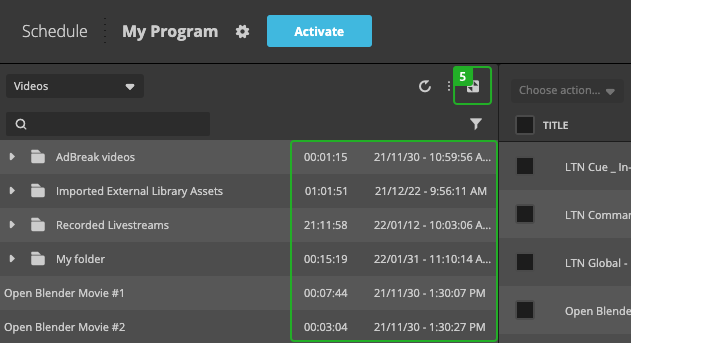
To see additional information about the files and folders, such as total duration and date created:
- Click on "Expand".
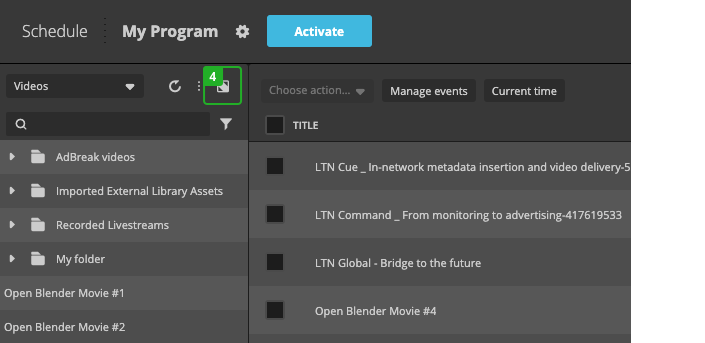
- Click it again to reduce the view.
How to continue?