
About: You can connect a Google Drive library to your LTN Schedule system to use your cloud files in the rundown.
Not sure how to start?
→ Learn to create and use folders in the library.
Connect Google Drive as external library
To connect a new Google Drive:
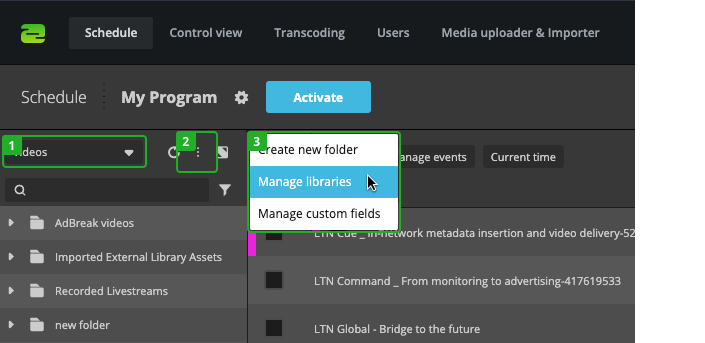
- Select "Videos" in the library dropdown.
- Click on "More" in the library.
- Select "Manage libraries".
In the "Manage libraries" dialog:
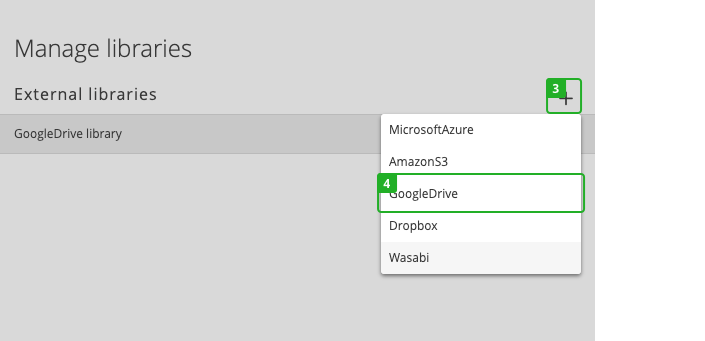
- Click on the "Add" in the top right corner of the dialog.
- Select "GoogleDrive" from the dropdown.
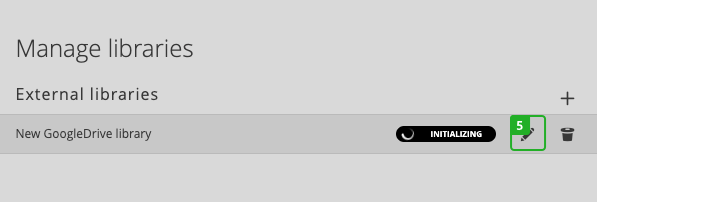
- Click on "Edit" on the new library.
In the "Modify GoogleDrive" dialog:
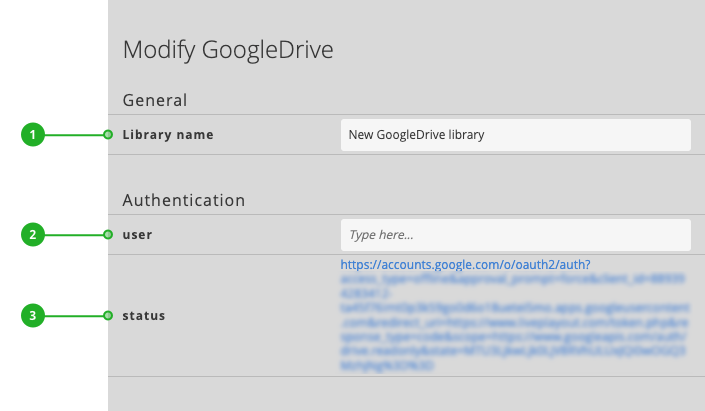
- Library name: Enter the name of your Google Drive library.
- User: Displays the authentication token once authentication is completed. You can also enter a valid token manually if the transmission has failed.
- Status: Provides a link to initiate the authentication or provides detailed information on the current status of the authentication.
Continue with authenticating your Google account.
Authenticate your Google account
To authenticate your Google account :
- Click the link next to the "status" (3).
- Follow the instructions given by Google's authentication process. When asked, allow "Playout Drive Integration" to get access to your Google account.
- Receive a success message: "Your token has been successfully transmitted."
- You can close the window displaying the success message.
Press "Modify" to save your changes.
After you connected your new Google Drive, switch to the library to access and use your cloud files.
Hint: If the status of your library stays "Initializing", it has not been authorized yet.
How to continue?