
About: Connect external storages from Wasabi directly to your LTN Schedule library and seamlessly use the media assets within your rundown.
Not sure how to start?
→ Learn to create and use folders in the library.
Prepare
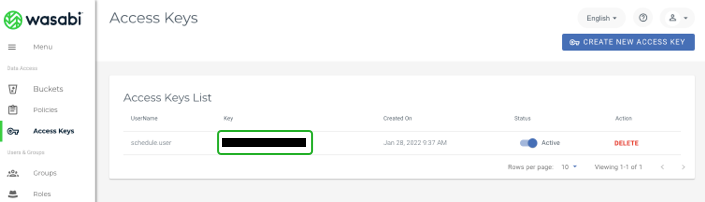
You find the necessary credentials for setting up your wasabi storage in the following areas in your wasabi console:
User access key
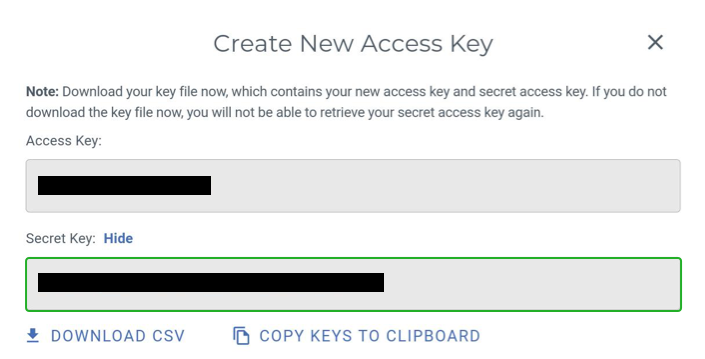
Secret key
You receive your secret key when you create a new user in Wasabi.
→ Learn to create a new user in Wasabi.
Connect Wasabi as external library
To connect a new Wasabi storage:
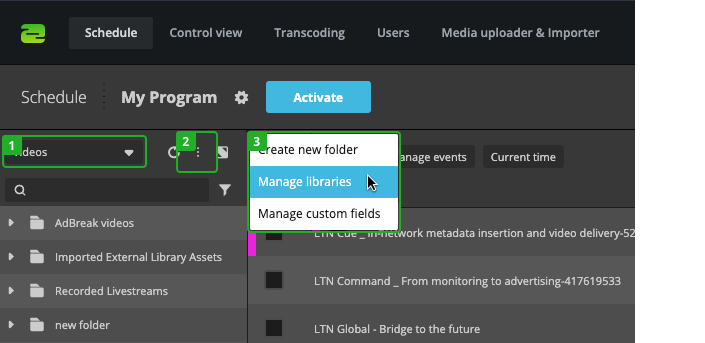
- Select "Videos" in the library dropdown.
- Click on "More" in the library.
- Select "Manage libraries".
In the "Manage libraries" dialog:
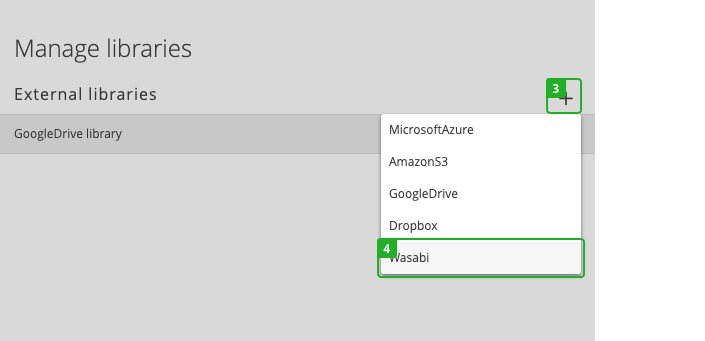
- Click on the "Add" in the top right corner of the dialog.
- Select Wasabi from the dropdown.
In the "Create Wasabi" dialog:
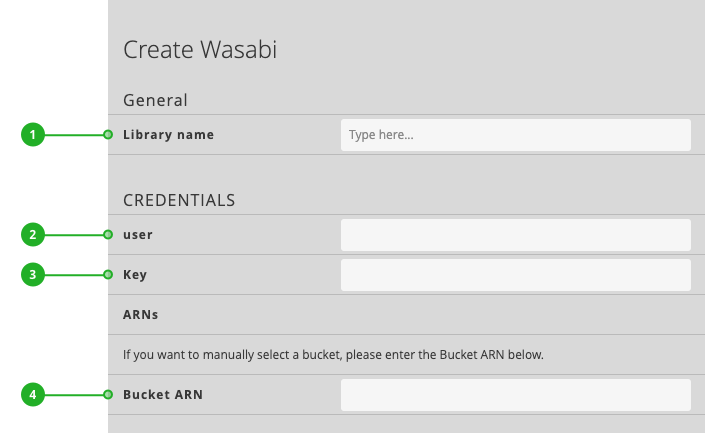
- Library name: Enter the name of your Wasabi library.
- User: Enter your "user access key".
- Key: Enter your "secret key".
- Bucket ARN: If your account does not have any buckets you can enter a bucket ARN manually.
Press "Create" to save your changes.
After you connected your new Wasabi storage, switch to the library to access and use your cloud files.
How to continue?